
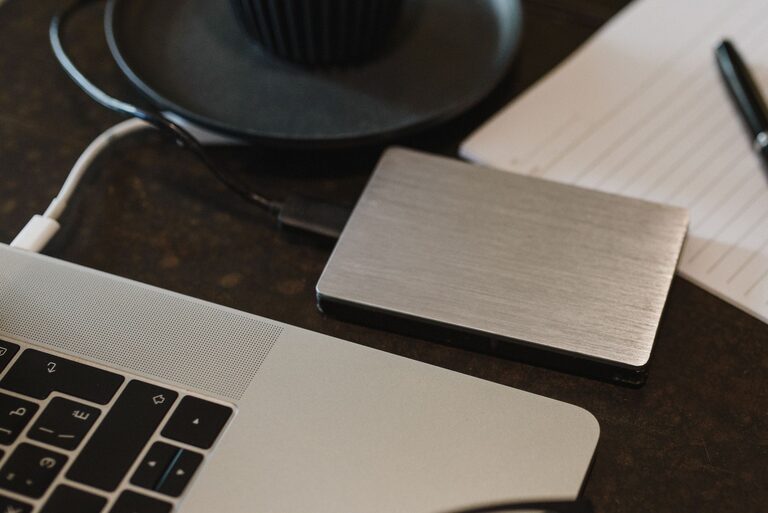
Backing up your photos and files is one of the smartest things you can do to keep your data safe. Whether you have precious memories saved as photos or important work documents, losing them can be frustrating or even disastrous. Fortunately, backing up your files is easier than you might think. This guide will walk you through the importance of backups, different methods you can use, and tips to keep your data secure.
Why Backing Up Your Photos and Files Matters
Technology is reliable, but accidents happen. Hard drives can fail, devices can get lost or stolen, and files can become corrupted. Without backups, these events can mean permanent data loss. By backing up your photos and files regularly, you:
– Protect against hardware failure
– Guard against accidental deletion or file corruption
– Recover files after device theft or loss
– Keep important memories and documents safe
Types of Backup Options
There are several ways to back up your photos and files. The best approach often combines multiple methods for extra protection.
1. External Hard Drives or SSDs
Using an external hard drive or solid-state drive (SSD) is a popular way to back up data. These devices connect to your computer via USB or Thunderbolt and allow you to copy files manually or automatically.
Advantages:
– Large storage capacity
– One-time purchase—no ongoing fees
– Fast transfer speeds
Tips:
– Use drives from reputable brands
– Keep your drive disconnected when not backing up to avoid malware risks
– Store the drive in a safe place
2. Cloud Storage Services
Cloud storage saves your files on remote servers that you can access via the internet. Popular services include Google Drive, Dropbox, Microsoft OneDrive, and Apple iCloud.
Advantages:
– Accessible from any device with internet
– Automatic syncing options
– Protects against physical damage to your devices
Tips:
– Use strong, unique passwords and enable two-factor authentication
– Check free storage limits and consider paid plans for more space
– Regularly review what’s stored to manage your storage efficiently
3. Network Attached Storage (NAS)
A NAS device is like your own personal cloud storage at home. It connects to your home Wi-Fi network and allows multiple devices to back up files to one location.
Advantages:
– Large storage for multiple users or devices
– Accessible remotely with proper setup
– More control over your data than cloud services
Tips:
– Keep your NAS firmware updated
– Use strong passwords and network security settings
– Consider RAID setups for extra data protection
4. USB Flash Drives
USB flash drives offer a quick and portable way to back up essential files or photos. They’re especially helpful for small amounts of data or for transferring files between devices.
Advantages:
– Very portable and easy to use
– Affordable for small storage needs
Tips:
– Not recommended as the sole backup method due to limited capacity and durability
– Label your drives and keep backups in different locations
How to Create a Backup Plan
Having a backup device or service is great, but without a plan, you might not back up regularly or completely. Here’s how to create an effective backup routine:
Step 1: Identify Important Files to Back Up
Not all files need to be backed up. Focus on:
– Photos and videos
– Work documents and spreadsheets
– Personal files like tax records and scanned IDs
– Application data or settings that are hard to replace
Step 2: Choose Your Backup Methods
Select one or more methods that fit your needs and budget. For example:
– Use an external hard drive for a full system backup weekly
– Sync photos automatically to a cloud service daily
– Keep copies of crucial documents on a USB drive stored safely
Step 3: Set a Backup Schedule
Backups are only useful if current. Decide how often you need to back up:
– Daily or weekly for photos and frequently changing files
– Monthly or quarterly for less active data
Step 4: Test Your Backups
Occasionally verify that:
– You can restore files from your backups
– Backups are complete and error-free
This ensures your backup system works when you really need it.
Tips for Organizing and Maintaining Your Backups
– Use clear folder structures and file names to find files easily.
– Keep multiple backup copies in different locations to protect against theft, fire, or natural disasters.
– Delete old backups periodically to save space, but only after confirming newer backups are safe.
– Encrypt sensitive files when possible, especially on cloud services or portable drives.
Useful Tools and Software
Many tools can help automate and simplify backups:
– Windows File History (Windows PCs) for automatic backups to an external drive
– Time Machine (Mac) for scheduled backups to external drives or NAS
– Backup software like Acronis True Image, Backblaze, or Carbonite for comprehensive backup solutions
Final Thoughts
Backing up your photos and files doesn’t have to be complicated or expensive. By choosing backup methods that fit your needs, setting a regular schedule, and keeping your backups organized, you can protect your valuable data without stress. Start today and enjoy peace of mind knowing your memories and important documents are safe and recoverable.